
Learn how to automate lead follow-up emails by integrating n8n with your CRM. This guide covers practical workflows, tool comparisons, pricing, and a step-by-step roadmap so you can accelerate sales outreach and know when to bring in expert help.
Automating lead follow-up emails is one of the fastest ways for small and midsize businesses to boost sales productivity and avoid letting hot leads slip through the cracks. If you're a business owner or ops lead, you probably know the pain of missed follow-ups and the manual grind of sending the same emails over and over. This article shows you exactly how to automate lead follow-up emails using n8n connected to your CRM, with practical steps, tool comparisons, pricing, and a clear path to implementation. By the end, you'll know what it takes to set up a reliable, scalable follow-up system, and when it makes sense to bring in outside help like Prompt Gurru.
Let's get right into the nuts and bolts: what are the key steps to automate lead follow-up emails with n8n and your CRM?
Step-by-step guide to automating lead follow-up emails with n8n and your CRM
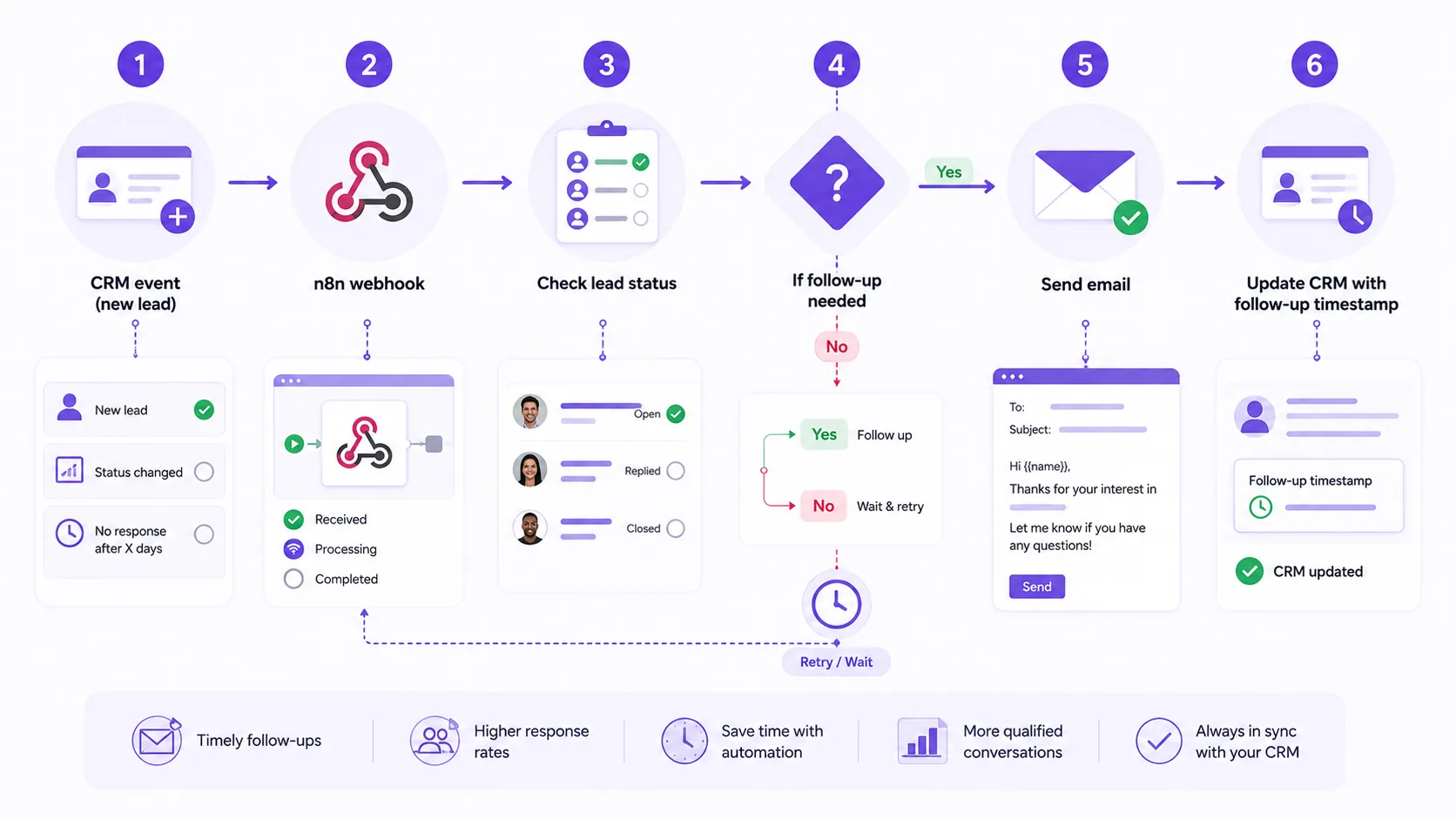
Automating follow-up emails is more than just sending messages on autopilot. You need to capture the right trigger events, personalize content, handle retries, and keep your CRM in sync. Here are the concrete steps we use in client projects:
- Identify CRM trigger events: Decide what should trigger a follow-up (e.g., new lead created, lead status changes, no response after X days).
- Set up n8n webhook or polling nodes: Use n8n's webhook node to receive real-time events from your CRM, or polling nodes to check for changes on a schedule.
- Define email content logic: Use n8n's built-in variables and expressions to personalize emails with lead names, company, last contact date, etc.
- Connect to an email service provider: Integrate n8n with SMTP, SendGrid, or Mailgun nodes to send emails reliably and track delivery.
- Implement retry and delay logic: Use Wait and If nodes to space out follow-ups, handle bounces, and avoid spamming leads.
- Track opens and replies: Update CRM properties or use external tracking tools to log email engagement and trigger next steps.
- Test end-to-end: Always run sample leads through the workflow to catch formatting or data sync issues before going live.
Practitioner tip: "Always map out your lead stages and CRM fields before building the workflow. Inconsistent data or missing fields are the #1 cause of failed automations in our experience."
Here's a simple ASCII workflow for a typical follow-up automation:
For more advanced flows, you can add AI-powered content generation or multi-step sequences with branching logic. If you want to see how this compares to other tools, let's look at the top platforms for automating lead follow-up emails.
Comparison of n8n and alternative automation tools for lead follow-up emails
Choosing the right automation tool depends on your technical comfort, workflow complexity, and budget. Below is a detailed comparison of n8n, Zapier, Make, HubSpot Automation, and Microsoft Power Automate for lead follow-up use cases.
| Tool | Deployment / Hosting | Best for | Ease of Use | Execution or Scale Limits | AI / Custom Code Support | Pricing Summary (as of June 2026) | Key Limitation |
|---|---|---|---|---|---|---|---|
| n8n | Self-hosted or cloud | Complex workflows, unlimited logic | Moderate; requires some technical skill | No hard limits on workflow runs; hosting costs vary | Supports JavaScript, HTTP requests, AI APIs (OpenAI) | Free Community edition; Cloud plans start ~€20/month; see n8n pricing | Self-hosting needs infrastructure management |
| Zapier | Cloud only | Simple to medium automations | High; user-friendly UI | Task limits per plan (e.g., 750 to 50,000 tasks/month) | Limited scripting; AI integrations via APIs | Free tier; paid plans $19.99 to $49.99+/month; see Zapier pricing | Cost rises quickly at scale |
| Make | Cloud only | Visual scenario builder, complex data flows | Moderate; visual builder | Credits-based operations; check plan limits | Supports HTTP, scripting modules | See Make pricing for Core, Pro, Teams | Pricing complexity; credit usage can be confusing |
| HubSpot Automation | Cloud | CRM-native marketing and sales follow-ups | High for HubSpot users | Contact and email send limits per tier | Limited custom code; AI content tools included | Hub-tier pricing monthly; Professional includes onboarding fees; see HubSpot pricing | Expensive for SMBs; vendor lock-in |
| Microsoft Power Automate | Cloud | Microsoft 365 ecosystem users | Moderate; UI-based | Per-user and per-flow limits | Supports custom connectors and scripts | $15/user/month premium plan; see Power Automate pricing | Best with Microsoft stack; complexity for others |
Pricing note: Prices are indicative as of June 2026 and vary by plan and usage. Refer to vendor pricing pages for current details.
For more automation articles and detailed cost breakdowns, check out our blog or our deep dive on custom workflow automation cost.

Pricing overview and total cost of ownership for lead follow-up email automation
Budgeting for lead follow-up automation means looking beyond just the monthly subscription. You need to factor in hosting, email sending, and maintenance, especially if you want a reliable, scalable system. Here's a breakdown by tool, plus what to expect for a custom build.
n8n
- Self-hosted Community edition: Free (open source); you pay for your own hosting (typically $50 to $200/month for cloud servers, depending on usage).
- Cloud plans: Start at ~€20/month as of June 2026; see n8n pricing for details.
- Requires some DevOps skill for setup and updates if self-hosted.
Zapier
- Task-based billing: Free tier (100 tasks/month), Professional plan starts at $19.99/month for 750 tasks as of June 2026; see Zapier pricing.
- Costs scale quickly with volume; high-volume follow-ups can push you into higher tiers.
Make
- Credit/operation-based plans: See official Make pricing for Core, Pro, and Teams tiers.
- Billing can be confusing if you're not tracking operations closely.
HubSpot
- Hub-tier pricing: Monthly billing; Professional tier includes mandatory onboarding fees. See HubSpot pricing for details.
- Best for teams already using HubSpot CRM and marketing tools.
Power Automate
- Premium plan: $15/user/month as of June 2026; see Power Automate pricing.
- Best for Microsoft 365-centric organizations.
Custom build (illustrative US market)
- Discovery, workflow build, testing, and training: $10,000 to $25,000 (illustrative US agency range; includes all phases).
- Ongoing support retainer: $1,000+/month for maintenance, updates, and monitoring.
Other costs
- Email sending: If using a third-party provider like SendGrid, expect $15/month and up for transactional email volume.
- Hosting and maintenance: For self-hosted n8n, budget $50 to $200/month for cloud hosting (AWS, DigitalOcean, etc.).
Total cost of ownership
- Subscription or hosting fees (n8n, Zapier, Make, etc.)
- Email provider costs (SendGrid, Mailgun, SMTP relay)
- Implementation and training (one-time or ongoing)
- Maintenance and support (monthly retainer or ad hoc)
Custom build ranges in this article reflect Prompt Gurru's US market scoping for n8n, OpenAI, and CRM integrations. Ranges include discovery, build, testing, documentation, and team training. Actual costs vary by stack and scope. Always check n8n, Zapier, Make, HubSpot, and Power Automate for current SaaS pricing.
Illustrative example: Automating lead follow-up emails with n8n and HubSpot CRM (illustrative example)
Before
Let's take an illustrative SMB marketing agency with 12 sales reps. Each week, the team spent about 15 hours manually sending follow-up emails via Outlook. Leads often went cold due to delayed or missed follow-ups, and managers had no visibility into who was contacted and when.
Solution
The workflow starts when a new lead is created in HubSpot. n8n receives the event via webhook, checks if the lead has been contacted recently, and sends a personalized email using SendGrid. The workflow updates a custom property in HubSpot to log the follow-up, waits 3 days, checks for a reply, and sends a second email if needed. All steps are logged for audit and reporting.
Results
- Sales reps were freed from repetitive emailing, focusing on calls and demos instead.
- Lead response rates improved thanks to timely, consistent follow-ups.
- Estimated project cost (illustrative): $15,000 for discovery, build, testing, and training.
For more examples of automation ROI, see our custom workflow automation cost article.
Implementation roadmap for automating lead follow-up emails with n8n
Ready to build your own automated follow-up system? Here's a practical roadmap we use for client projects:
- Audit your current lead follow-up process and CRM data quality.
- Define automation triggers, email templates, and follow-up cadence.
- Choose your n8n hosting option (self-hosted or cloud).
- Build initial workflows with webhook triggers and email nodes.
- Integrate CRM API calls for lead data and status updates.
- Test workflows with sample leads and monitor logs for errors.
- Train your sales and marketing teams on automation and exception handling.
- Deploy and monitor KPIs like open rates, replies, and conversions.
- Iterate and add AI content generation or lead scoring for smarter follow-ups.
If you need help with any of these steps, Prompt Gurru offers AI automation services and can handle the full implementation.
Frequently asked questions about lead follow-up email automation with n8n
What CRM systems work best with n8n for follow-up automation?
n8n integrates well with popular CRMs like HubSpot, Salesforce, Pipedrive, and Zoho via built-in nodes or HTTP Request nodes. The best fit depends on your CRM's API support and webhook capabilities. HubSpot and Salesforce are the most common in our client projects.
How do I handle email sending limits and avoid spam filters?
Use reputable email providers like SendGrid or Mailgun, set up proper SPF/DKIM records, and avoid sending too many emails at once. n8n lets you throttle sends and add delays to mimic human timing. Always test deliverability before scaling up.
Can n8n personalize emails with dynamic lead data?
Yes, n8n supports variables and expressions to pull lead names, company info, and other CRM data into your email templates. For advanced personalization, you can use the OpenAI node to generate custom content based on lead attributes.
What are the best practices for follow-up cadence and retry logic?
Space out follow-ups (e.g., 2 to 5 days apart), limit the total number of emails per lead, and stop sequences if a reply is detected. Use n8n's Wait and If nodes to control timing and branching. Always respect unsubscribe requests and local regulations.
How to track email opens and replies within n8n workflows?
Integrate your email provider's tracking features (e.g., SendGrid events) with n8n, or use webhook callbacks to log opens and replies. Update CRM properties to keep your sales team in the loop.
Is self-hosting n8n secure for sensitive lead data?
Self-hosted n8n can be secure if you follow best practices: use HTTPS, restrict access, keep software updated, and monitor logs. For regulated industries, consider cloud options with built-in compliance or work with a partner experienced in secure deployments.
Prompt Gurru practitioner workflow for lead follow-up email automation using n8n
In our client projects, we typically build n8n workflows that combine CRM integration, dynamic content, and reliable error handling. Here's a typical workflow we implement for SMB sales teams:
We also provide team training on how to monitor, extend, and troubleshoot these workflows. If you want a tailored automation for your stack, contact Prompt Gurru or book a free discovery call.
Common mistakes when automating lead follow-up emails
Automating a broken lead follow-up process without fixing data quality first
Many SMBs jump into automation hoping to save time, but if your CRM is full of outdated, duplicate, or incomplete leads, you'll end up sending emails to the wrong people, or worse, spamming old contacts. Always clean and standardize your lead data before building automations. We've seen workflows fail simply because the 'email' field was missing or inconsistent.
Underestimating task or operation volume in tools like Zapier or Make at scale
It's easy to overlook how quickly automated follow-ups can eat up your monthly task or operation quota. For example, a 5-step follow-up sequence for 1,000 leads could burn through 5,000 tasks in Zapier or thousands of operations in Make. This leads to surprise bills or throttled workflows. For high volume, consider self-hosted n8n to control costs.
Poor CRM hygiene breaking downstream automations
Even with a clean initial import, ongoing CRM hygiene is critical. If sales reps skip required fields or update statuses inconsistently, automations can break or send the wrong messages. Set up validation rules, regular audits, and clear processes for your team to keep automations running smoothly.
About the author: Prompt Gurru Team
Prompt Gurru Team is an AI automation and custom software studio with 5+ years combined experience shipping production automations and apps for startups and SMEs. We specialize in n8n orchestration, OpenAI API integrations, CRM and marketing automation, and Flutter/FastAPI development. Our clients include B2B services, marketing agencies, e-commerce, and SaaS startups. Custom build ranges in our articles reflect US market estimates including discovery, build, testing, and training. Contact us or book a free discovery call to discuss your automation project.
Additional Resources
Ready to automate your business?
We build n8n workflows, AI pipelines, Flutter apps, and custom software for startups and SMEs - like the system that powers this blog.
Book a free discovery call